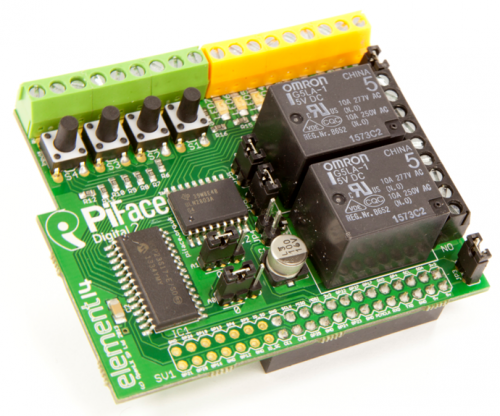
Reaching out to the real world : The Pi-face Digital 2

The PI-face Digital 2 Input and output interface board

The PI-face Digital 2
Input and output interface board

Reaching the real world

The fundamental difference between a standard Tablet a Laptop or Desktop computer and a development board system is a little harder to define than you may think !

Hot From the Oven A Raspberry pi with a tasty CPU


A Raspberry pi 2 with ARM quad core CPU

After all most of the components on a development board are much the same as on a standard computer system.

The ARM processor that many development boards use for their core processor is a perfect match for these boards, they use much less power (lasting hours on a battery!) than an Intel CPU , run at a much lower temperature and contain all the power needed to run a powerful operating system such as Linux ( Used to power many of the Internets servers !). They are well documented and capable of being programmed via ( Assembly, C++ and Python Languages ).

Many of these single board systems also have all the I/O capabilities needed to talk to any of the contemporary external peripherals on the current I.T. marked, including storage units, screens, printers, human interface devices , etc ……

Hot From the Oven A Raspberry pi with a tasty CPU

Hot From the Oven
A Raspberry pi with a tasty CPU

The main area relating to why I wanted to own and get to learn how to work with a development board system such as the ( Cubieboards and Raspberry pi systems ) that interested me the most however was their ability to interface with external (personal electronics projects related) based devices such as (Sensors, Switches and Relays and Motors) .

I am still spending much time revising and learning computer development languages such as (Python and C++), many post to come ! but I have also just placed an order for a device called the “PI-FACE digital 2”, its specifications are as follows :

Features

The PI-face Digital 2 Input and output interface board

The PI-face Digital 2
Input and output interface board

2 Change over Relays
4 Tactile Switches
8 Digital Inputs
8 Open-Collector Outputs
8 LED Indicators
Graphical Emulator
Easy to program in Python 3 and 2, Scratch and C
Support for interrupts

Some of the examples of devices that can be attached to this Raspbery pi expansion board include :

Input devices and sensors

IR motion sensors
Distance rangefinder sensors
Tilt and movement sensors
Light Sensors
Audio sensors
Temperature sensors
Switch panels
etc…..

Output devices

Lights
Motors
audio devices
lcd matrix panels
heating devices
cooling fans
etc…

Element 14 – PIFace link

This device comes with Python and C++ library’s to aid in writing software to perform actions resulting from the data input from the many different sensors types available.

I am very excited about receiving this device and getting to work with it, after many years of writing software applications that do all kinds of things from database management to photography related data management (Calculating depth of field etc …) I am very much looking forward to programming apps that react to sensors that see the real world around them.

I ordered the PiFACE Digital 2 here : NEW IT

Posted in Development board hardware, Development boards, Hardware construction, Raspberry pi | Tagged , , , , , , , , , , , | Leave a comment

Looking at the Linux terminal commands and the Man pages.

Screenshot  2014-12-01 13_17_03

Using the Linux command line and the Man pages

In one of my previous post I referring to the differences between Linux and MS-Windows, I talked about the fact that Windows has removed itself largely from the command line interface based on MS-DOS commands, while Linux has stayed very closely connected to its terminal/text command interface history, this being based on shell structures such as BASH or KSH.

Linux remains anchored down to its operating system kernel via a layered human interface structure that firstly consists of its text based shells that are accessed using a terminal application. This Terminal application is booted during the system start up processes. If you install a version of Linux that is intended for server use only then this becomes very clear in that these versions of the OS do not as default install a GUI (Graphical user interface!). It is mainly only the desktop versions of Linux that install a GUI, with many different types being available (i.e. Gnome, Lxde, etc…), these being layered on-top of the terminal layer. Some versions of Linux such a Arch do not start a GUI by default at boot, you start them by using the ‘startx’ command.

Its also worth noting here that the Linux command line is very central on development boards such as the Raspberry-pi’s or Cubieboards, it is less likely that the final versions of many applications for these systems will use a GUI as the overheads maybe to much and one may not be needed in any case!

It is also very likely that you will communicate to these devices over a local network and do so using SSH or TELNET and in both these cases you login directly to the command line layer.

To many users of Linux it is the world of the command line that maybe confuses them the most, if you search the internet as you will need to for support issues it will very quickly be clear that you will need to be able to function as a terminal based users in-order to do anything from install applications, correct system errors or add hardware, Linux has however improved massively over the years with GUI applications now being able to do all these things but most of the help pages online and in printed form publish their instructions using Linux terminal based commands.

So how can you easy a little the process of learning the needed linux commands you will need to know in order to function from a terminal ?

Well one of the features of Linux that I find the most impressive is the (Manual pages : MAN pages ) system. This is one of Linux’s hidden gems and you need to take a close look and this system structure if your going to truly get to grips.

Screenshot  2014-12-01 13_17_02

The MAN page system in Linux is used to access help on not only system commands but on system subroutine libraries and the following areas, all structured into numbered sections as follows:

The manual is generally split into eight numbered sections, organized as follows (on Research Unix, BSD, OS X and Linux):

Section Description
1 General commands
1M System administration commands and daemons
2 System calls
3 C library functions
4 File formats and conventions
5 Miscellanea
6 Games and screensavers
7 Special files (usually devices, those found in /dev) and drivers

Note : You may have also noticed that as a part of most applications that you install, if you look at the text that shows the installation processes taking place, one of the last lines to be listed is a line that confirms a man/help page is being added to the MAN pages.

You can access the MAN Pages system in two ways :

1.. At a terminal window by type ‘man’ followed by the command or object name that you want help on.
2.. By opening the ‘xman’ application from the command line or from a GUI desktop menu or icon.

Terminal Command line usage :

To read a manual page for a Unix command, type:

man

Pages are traditionally referred to using the notation “name(section)”: for example, ftp(1). The same page name may appear in more than one section of the manual, such as when the names of system calls, user commands, or macro packages coincide. Examples are man(1) and man(7), or exit(2) and exit(3).

The syntax for accessing the non-default manual section varies between different man implementations. On Solaris, for example, the syntax for reading printf(3C) is:

man -s 3c printf

On Linux and BSD derivatives the same invocation would be:

man 3 printf

which searches for printf in section 3 of the man pages.

Note : if you want to find out more about using the man pages from the terminal command line just type : ‘man man’

Screenshot  2014-12-01 13_17_02

Xman

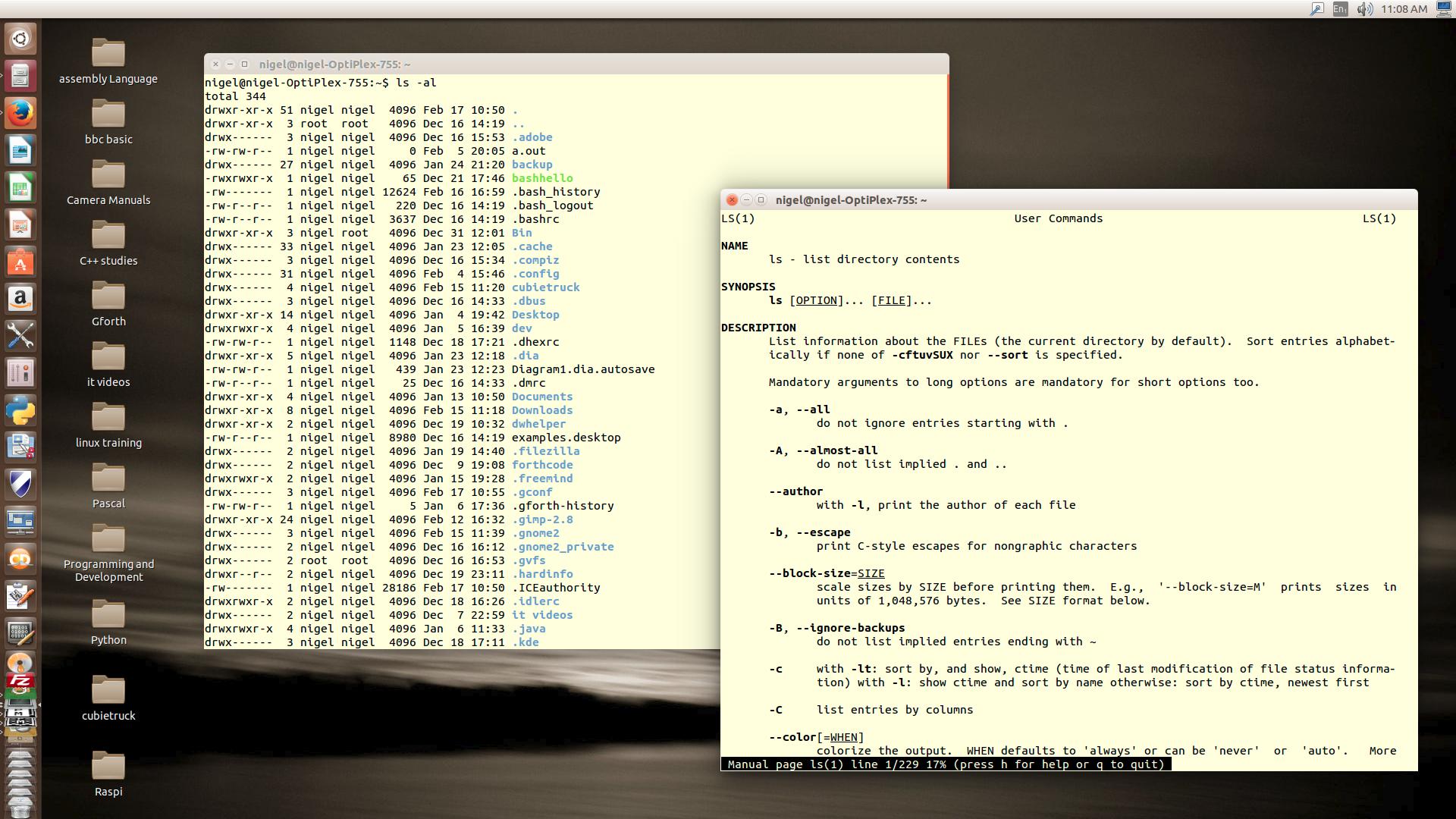
I have included some images here of how both the terminal/command line man pages look and how the GUI version ‘Xman’ looks in operation.

Xman is a great utility application as it can guide you to all the installed objects by their sections, along with allowing you to search the entire system for the nameof the object you need help on.

It also just allows you to browse through and learn.

Xman is not always installed by default but it is still available within the X11-tools package in the Linux repositories.

Posted in Linux, Operating systems | Tagged , , , , , , , | Leave a comment

The Python Language and a study book (Learning Python 5th edition) free to download!

Learning Python 5th edition

Learning Python 5th edition

Its my aim with this blog to share a learning process, in developing application software.

Following the processes of putting some hardware systems into place such as the Raspberry pi b+ and B2 along with a Cubietruck, ARM CPU development boards and also placing them into a networked structure, I am ready to get going.

So lets take a quick look at one of the highly recommended programming languages for these systems.

As a Programming Language, Python comes per-installed in Linux (Its true home!), also being available via download for Mac OS-X, android ( phones and tablets ) along with MS-Windows systems.

It is supported and developed by The Python Software Foundation (PSF), which is a non-profit organization devoted to the Python programming language. launched on March 6, 2001. The mission of the foundation is to foster development of the Python community and is responsible for various processes within the Python community, including developing the core Python distribution, managing intellectual rights, developer conferences including PyCon, and raising funds.

Python is a recommended Development Language on many Development Board systems including the Cubi-board/truck range and the Raspberry pi systems.

Its an interpreted language in the modern sense of the word, in that to run a module of code it first opens and reviews your human readable python code with an aim to produce and output file containing what is called “Byte-code”, which it then executes. The reason for this is that your application can be processed much faster than would be the case using the higher level code. it also helps to produce a ‘Byte-code’ file used to run the same application over and over again.

Interpreted computer languages such as “BASIC” have taken this ‘byte-code’ processing format for some 30 years or so, taking your human readable code converting it into a ‘byte-code’ file and then running the application faster by using this file.

Were Python can be called a more contemporary language is in the fact that it does two very different things than the older BASIC language :

Firstly … It saves the byte code so that it can be used for running an application over and over from the ‘BYTE-CODE’ file and also on any system with python installed. This helps you to distribute your applications (to any system architecture !) yet protects your coding methods.

Secondly… you can produce a file that includes the python execution modules within it, along with your code. So that your application can be executed as a standalone executable file, this is a great step forward for an interpreted language system. Some will already have worked out however that this executable will only work on the system architecture you are developing for (i.e. ARM or INTEL), it is however easy to use what is called and ‘SDK’ or move your high level source code to another system and produce a version for that platform.

Both of these above features in Python provide for a very flexible system, you get the ability to use the (write and run!) speed of an interpreted language (i.e. you don’t need to keep recompiling (eg, Make, link and compile in C++) code every time you make a change to it. Yet you can at the final stages of the development cycle produce a standalone system application that can safely be distributed.

While I have used Python some, I have only worked my way through examples and material that related to the areas that I needed/wanted to know at the time, so my aim here over the next weeks is to work my way through a proper training paths. To do so I have selected the following book (Learning Python, 5th Edition), I started this last weekend and have worked my way through the less interesting “Lay of the land !” first sections which is somewhat hard going and I have to say and a little repetitive!!!.

I now however feel its worth starting to sharing some of the areas being covered !!

I will posted any topics I find helpful with some samples of my own coding ideas , follow the download link and get a copy if it’s of interest !!!

Back soon ………

Posted in Cubietruck, Development Languages, Programming skills, Python, Raspberry pi, Study guides and exams | Tagged , , , , , , , , , , , , | Leave a comment

A look at Linux and programming languages

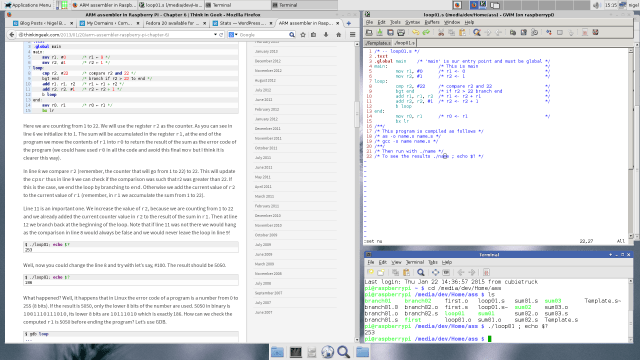
ARMcpu Assembly programming using an SSH remote connection

ARM cpu Assembly programming

So far on this blog my posts have related to the hardware I am using in order to help refresh and regain some software development skills and then take these skills forward into learning some new areas. In order to do so however I first needed to establish which existing skills if any have become redundant and which skills will take me forward.

Right from the early days of software development, programming languages have been split into two main types ( low level and high level ) languages. To anyone who has not even looked at a few lines of programming code these differences may already be very confusing so lets make these definitions very simple.

The best way I can think of to simply describe what a programming language is, is to make it very clear from the start that all programming languages do is ask the computer to perform very simple things, these being to tell the installed CPU and hardware within the system how to perform very basic operations. At the very lowest level these operations and instructions are usually to move data from one location to another (i.e. move data entered at the keyboard to a memory location and then copy this data to the screen ) . Other operations can be based on performing basic mathematics on data.

In order to perform very complex operations using a computer system the system needs to perform many millions of operations per second. Even when it looks like your PC or tablet is doing nothing it is checking if you just tapped the screen or pressed a key on the keyboard, checking if your installed applications need updating and checking if you have new emails. There are many millions of things being performed in the back ground of an operating system like Linux or Windows without you even realizing anything is being performed at all. An operating system is just a set of programs packaged together in order to perform all of these tasks.

Returning to programming languages and their defined levels, these being ( Low level and High Level ) – in a Low level language the programmer deals with coding every single instruction that has to be performed by both the computers CPU (Central processing unit (i.e. Intel I7)), in a High level Language the Programmer uses a per-written set of commands that make up the defined Language (i.e. C++ or Python) to construct a program to perform a set of designed functions (i.e. locate your GPS location and store it for a future return!). At this higher level the programmer is dealing with how and when procedures will be performed, without having to deal with the much lower level of each direct CPU of hardware instruction ( i.e. the command PRINT in python is a pre-written command that consists on many machine level instructions. all performing what looks like in a high level language a single instruction !).

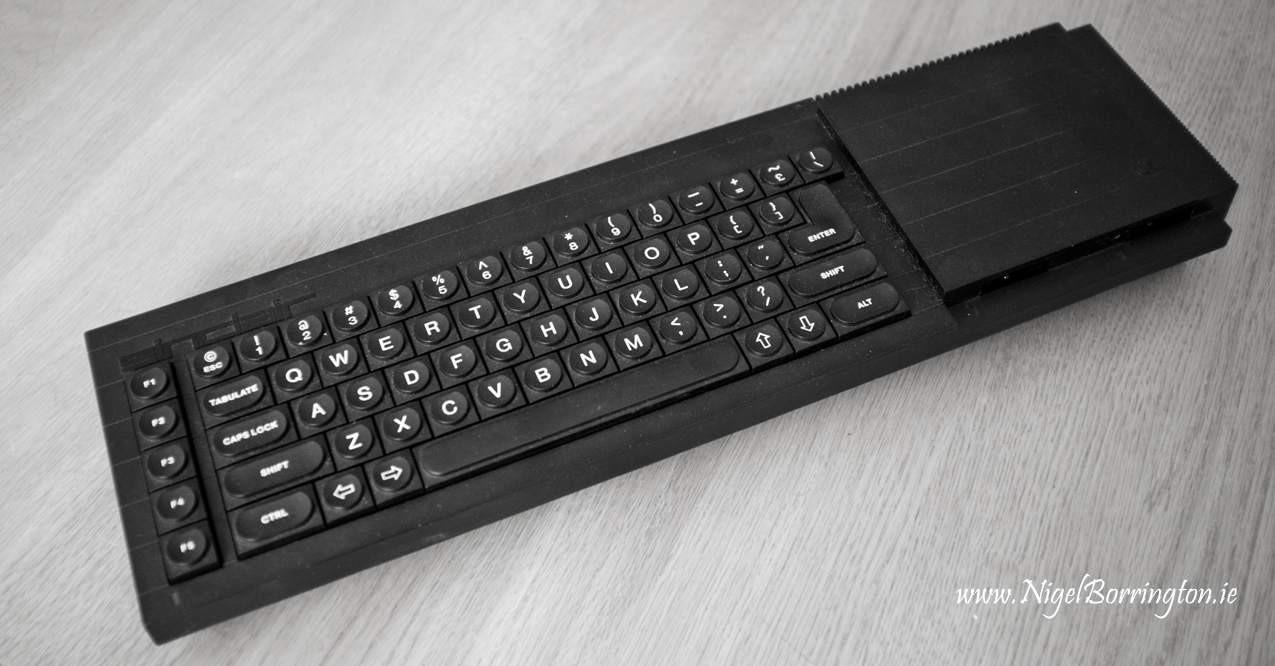
Sinclair QL , one of the first personal computers. 31 year old in 2015.

Sinclair QL , one of the first personal computers.
31 year old in 2015.

Way back in the 1980’s if/when you purchased a computer for your home and first turned it on, it was very clear that it was your task to get involved with programming it in order to get it to do basic things for you. Many early computer owners did so and learned to write their own code.

If you wanted to get someone else’s programmes you could get a listing of their program and key it all in or get a copy of their code on tape and later on a disk.

Today Linux as an Operating System remains one of the best OS for as many people as possible to continue these open development skills, for one simple reason. If you get to be very good with programming applications on linux you will notice that all the source code for the operating system itself is freely available and fully documented. This is not the case with Microsoft windows where both the programming tools come at a premium cost and the knowledge of how to code in windows is only available, if your in a position to pay for it or be given it as a software developer.

My personal objectives as I said at the start of the post are to define which areas of development tools I can use to work with systems such and the respberry pi and cubieboard in order to produce software. I can use this software to learn and do some of my own electronics projects.

So lets move on here a little !!

The following lists show the programming languages that I intend to use in order to get my projects going, there are many more in the Linux and GCC free repositories but I consider these languages to both be current and well supported into the future and as such worthy of learning and working with.

Available Linux Programming Languages.

Low level

Assembly Language

( Available using the GCC compiler applications (GCC and AS))

Assembly language is written in such a way that it performs one single hardware operation per written instruction. It can however be structures and fully documented within the code.

Gforth – GCC programming language

Some consider Forth to be a higher level language in its structure but in many ways it is much closer to Assembly Language. I feel that this is so because the programmers of this language have to make uses of direct memory addresses to store data in and use these memory addresses in both mathematical functions and data movement operations ( moving data around the system) . It also make direct use of the CPU’s data stack features to store both memory addresses and binary data.

Where Forth is a little higher level than Assembler is in the fact that you code in Forth by adding words ( routines ) to the base Language, the base level language comes with predefined standard words.

I will come to this below but Forth runs in both Compiled and Interpreted execution modes.

The learning curve !

As a note here, if you use low level Languages to develop applications on any type of computer system you have a couple of options to help you produce usable and fully functional applications.

Firstly, you need to get in place all the available development information on your computer system including the (CPU instruction set, key system memory addresses for registers and I/O , any other instructions that you may need for I/O such as screen graphical functions, hard disk operations etc….).

Secondly, you can get together (Using as many web sites (i.e. the GIT development database, forums and blogs etc…) along with books) a personal repository of code that others have already developed to both use within your own code. however for your own skills just cutting and pasting is not a great idea. Try to find code that is well documented with comment and learn exactly what this code is doing. Once you understand it you will be able to make good use of shared program code and also you never know even improve on them!

Using both the above methods for low level language coding, you will learn much more about your Personal computer hardware and just how it is programmed to perform functions. This is the reward for what is actually and much harder path than instantly taking the High level language route.

High level Languages

Firstly it is worth noting that High level computer Languages have evolved over the years from early versions of languages such as COBOL. FOTRAN and BASIC that were procedural and structured in their form and construction, into Languages such as ( C++ and Python ) that take on a conceptual format that is referred to as object orientated programming. When I first started programming for a living way back in the late 1980’s I worked with and two IBM Languages on the IBM system 38 and then AS400 systems, these Languages were, CPL – Control program language – used to act as a system related script for moving and copying files etc… and RPG – report program generator – a high level language that was used for data base processing and related functions. At this stage languages such as these were procedural in their nature.

I can remember the first time I read about Object orientated languages and feeling a little puzzled as to what the need was for a move towards them.

As this blog develops I will come back to these very different methods of writing code but I will say that I still find reading procedural programs much easier and intuitive , object orientated code is very good for large scale programs, with many thousands of lines of code but most programmers don’t write code this large and I feel that reading and documenting procedural – structured programs to be much easier up to a reasonable size.

The last difference between these types of high level programming languages is relating to how the program is executed in the following ways:

Interpreted : The finished code runs as an interpreted program, processed by a lower level application called an interpreter which reads each line of code from the program file and then executing it.

Compiled : A program called a compiler reads your code file and converts it into an executable binary file which your computer can process and run directly. The compiled program file is standalone and is run directly by the operating system. All commercial software is delivered in this form.

I have selected the following three Languages for my high level language programming :

Bash : for Linux shell scripts

Bash is a Linux shell environment and as such you can write operating system level scripts using commands in bash. All code is run in interpreted mode with the Bash command interpreter reading your script file commands and executing them at a system level.

Bash scripts take the form of structured programming only.

I will use these scripts to control such things as file backups, selecting which applications need to be called for processes and controlling application configuration files.

Python : Python application programming

Python is an interpreter based language that can be used to run single commands or programs that are stored in a program file or script.

You can find a version of the Python Language for almost any computer related device produced during the last 20 years, it has however kept evolving and is very popular today. While it runs through the use of an interpreter it can be fast and very stable with full error checking.

It can be used in structural or object orientated forms.

It can be extended by loading library files that contain hardware or other functions along with any extensions that may be needed in your programs such as graphical procedures for games or design software etc…

It is extremely well supported and as such easy to learn, with many online support sites containing sample code and videos etc.

C++ : C++ Application programming

C++ is the most used and supported of the current programming Languages , MS Windows and Linux are written in C++.

Like I said earlier the Linux operating system being referred to as an OPEN systems environment shares all its source code, not only to developers and software company’s but to anyone. This is not to say that anyone can just go and change Linux.

What it does mean however is that you can obtain the source code for all of the Linux operating system and read your way through it and if you so wish you can re-write you own installed version of Linux to perform your own functions in the way you would like them to act.

As such learning and writing code in C++ is a given and a must for anyone who is into coding applications.

C++ is a complied language

C++ like Python uses Library files to extend its scope and you will soon find that you need many library’s in C++ as they are even a core part of the language structure as standard, allowing you to extend the size of your code to match your applications needs.

It can be used in structural or object orientated forms.

C++ is like Python – Extremely well supported in both online and printed media formats.

Like a say its is a given to learn this language so I will be share lots of code in C++

OK that’s it for this post , well done for getting down here !! ←

In summary these details layout everything I will be doing from an application development stand point, in this blog so I hope it been worth putting together and for you to read.

Posted in Linux, Programming skills | Tagged , , , , , , , , , , , , | Leave a comment

Raspberry Pi 2 B

Raspberry Pi B 2 Up-boxing and setup

Raspberry Pi B 2
Un-boxing and setup

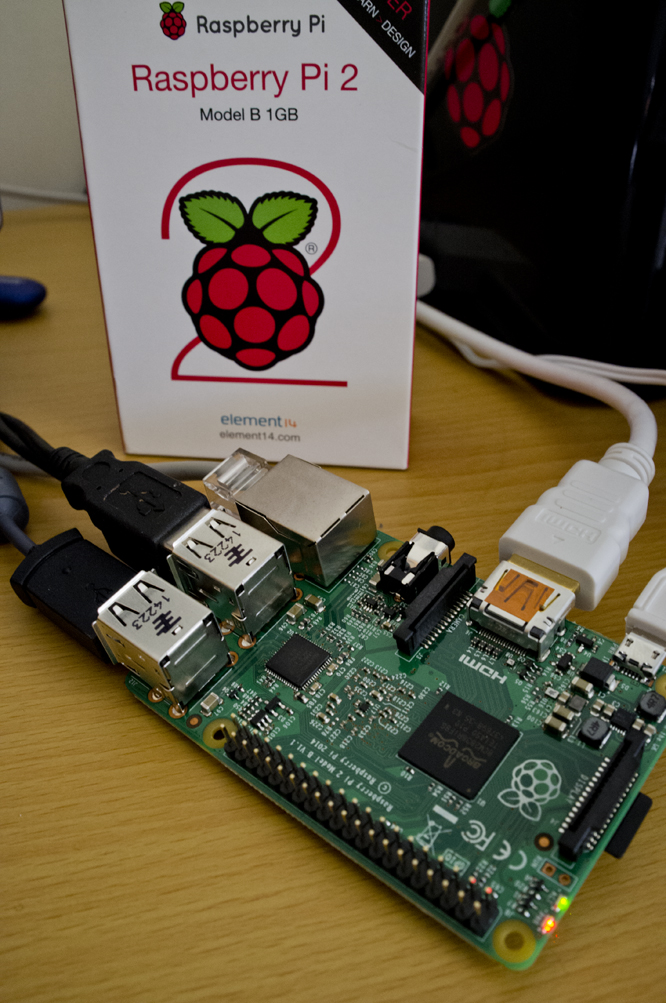
Well it’s arrived (My new Raspberry Pi b 2), after placing an order only four days ago.

I ordered it from NEW-IT (See the link on the sidebar !), these suppliers are just so good with their customer service 🙂

I have only had time to take a quick look and to, firstly check if my old Linux installation will boot with no changes, sadly this did not work ! – but this is no huge show stopper as I still intend to use this install with my old PI B+ anyway.

I have installed Raspbian Linux again from the Noobs download located on the Raspberry Pi web site and this worked first time with a clean and fast install.

During installation you may want to setup the GUI to start automatically from boot and the system can be set to run 100mhz faster than standard 900Mhz (@ 1000Mhz) for each of the 4 CPU cores, this is a managed and safe overclocking as the OS works with the CPU to vary its speed as needed (from 600Mhz to 1000Mhz).

After the install the first thing to do is update your installation as follows :

sudo apt-get update
sudo apt-get upgrade

Raspberry Pi B 2 Up-boxing and setup

Raspberry Pi B 2
Un-boxing and setup

Taking a quick look at how the Pi b 2 is performing, its much-much faster in operation than the last Pi version and the extra 512mb of Ram adds to a much improved performance. Using the browser I did some Google searches along with going to the Raspberry pi web site and there is none of the delays that the older Pi B + had. That’s great news !!!

I will take my time building this installation to match the install I had configured on the Pi B+ , I need to install networking services (FTP, SHH, etc…) and the GCC development applications (GCC, AS, GFORTH, etc… ) along with all the OS extras that I use such as HEX-EDIT. I made some good paper notes on all these services and their installing methods and their configuration, so I think this is about four hours work when I have time.

At some point I will get a designed case from ebay.

So that’s it , so far I am very happy with the PI-2 and looking forward to getting productive with it 🙂

Posted in Operating system installation, Raspberry pi, Single board computers | Tagged , , , , , , , , | Leave a comment

Hot from the Oven, The Raspberry Pi B 2

Hot From the Oven A Raspberry pi with a tasty CPU

Hot From the Oven
A Raspberry pi with a tasty CPU

Hot from the Oven, The Raspberry Pi B 2 – with a Tasty CPU

pi_board_big

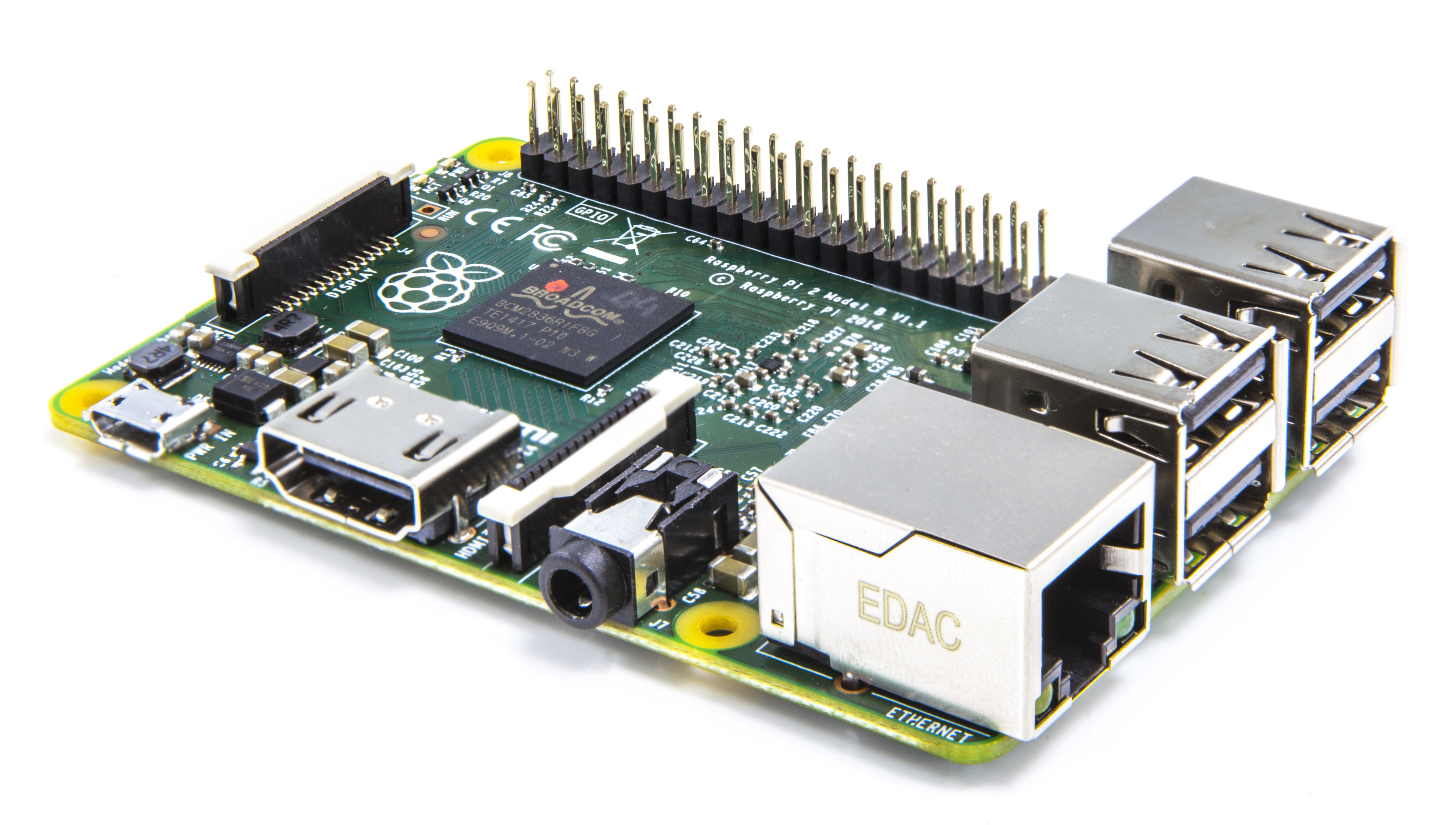
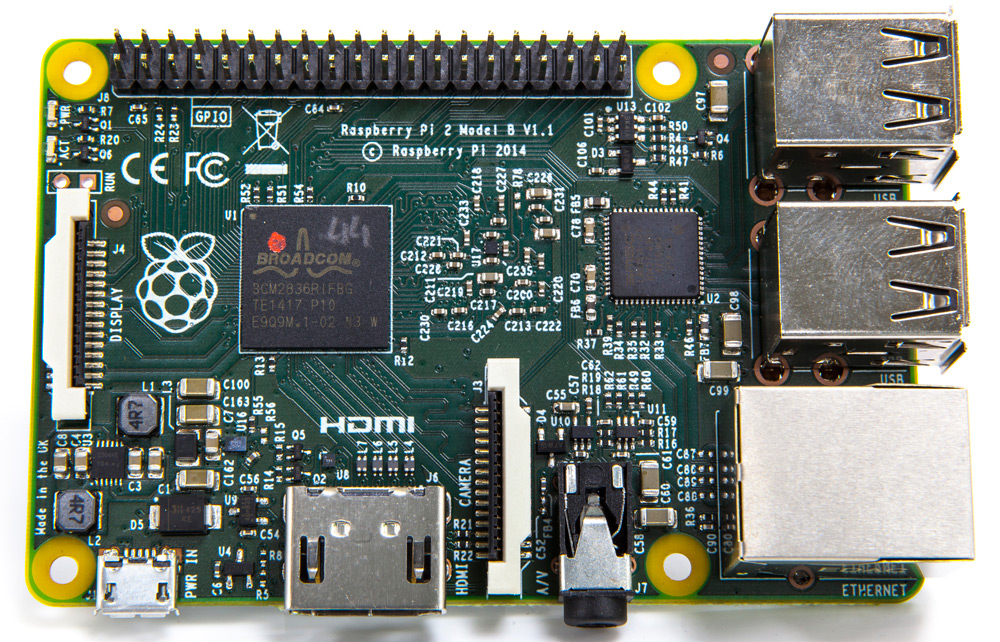
Almost as if taking everyone by surprise, the Raspberry foundation on Monday launched a new Raspberry Pi development board, The Pi B 2 !

The new board has the following Specifications :

New Features

A 900MHz quad-core ARM Cortex-A7 CPU
1GB RAM

Like the (Pi 1) Model B+, it also has:

4 USB ports
40 GPIO pins
Full HDMI port
Ethernet port
Combined 3.5mm audio jack and composite video
Camera interface (CSI)
Display interface (DSI)
Micro SD card slot
VideoCore IV 3D graphics core

I got the news while on holiday In Killarney, county Kerry and placed an order when I got back to the Hotel , these great little boards are only €42 euros after all !

I ordered from NEW IT as they have always given a great and fast service to date , with great support!

I currently own a Pi B+ with a single core CPU running at 900mhz – which I have over clocked, this new board is going to be much faster. Faster even than many of the other boards on the market and possibly faster than my All-winner(cpu) based cubietruck system.

CPU Speed at this level of computing is not one of the largest requirements (There is always going to be a faster pc!), as other areas such as number of ports and GPIO pins and their system programming availability – along with overall system stability is often more important.

I do think however that for many Raspberry pi owners and there are some three million of us around the planet, the old Broadcom single core processor (700mhz standard) with only 512mb of ram was leading to speed issues during using and developing on these systems.

Now however you should find that you can make use of the most demanding of developments IDE’s such as Netbeans and freely browse the web for downloads and technical information.

Raspberry Pi

So I cannot wait to swap out the old pi B+ for the new B2, I think the old board will be used for OS’s such as Riscos, this is a great option as I wanted a board for this operating system in any case :).

Posted in Development boards, Raspberry pi | Tagged , , , , , | Leave a comment

Great Raspberry Pi Projects – 1 : The Pi gets a 1980’s – Retro computer makeover :)

raspcherry-pi_back-1024x768

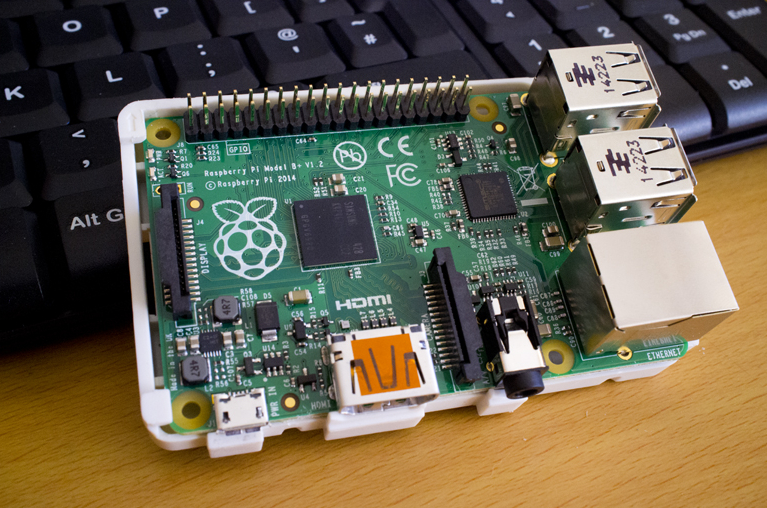
One of the really cool things about the Raspberry pi is all the home made projects you see people working on, I came across this project last night and just love what the owner of this Rasberry Pi has done with it.

Sinclair QL 1

Yesterday I posted about a classic Computer the Sinclair QL and well this Raspberry PI project has managed to mix the retro 1980’s computer look with the bang up to date development board systems just like the Pi. Looking at this project its very clear just what creative things can be done with any of these development boards by having a little fun with them.

Cherry=pi Home page

OLYMPUS DIGITAL CAMERA

“When I read about the Raspberry Pi in the Elektor magazine for the first time (in 2011), it was immediately clear to me that I’d need such a thing! After a long wait for the project to be finished and another couple of weeks ’til the ship from China arrived, I’m now a lucky Raspi owner. After the first playing around I was looking for a case to make some more serious use of it as a computer. Or do you like to carry a pile of cables, psu, keyboard and a little, naked PCB around for working with…?

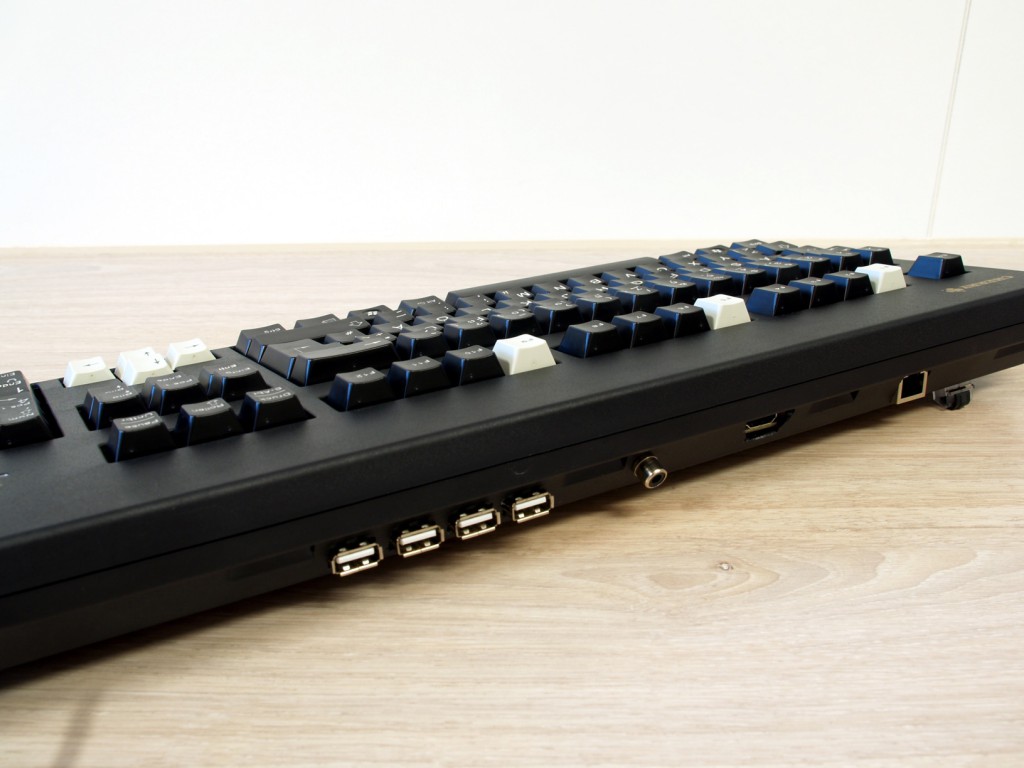
The solution to this was literally lying in front of me on the desk: The keyboard! To be more precise: the best keyboard in the world, a Cherry G80-3000. You could even use it to nail something on the wall if you were in dire need. So it provides a sturdy case which is conveniently spacious and mostly empty. The Cherry is indeed almost twice as expensive as the Raspi itself, but such a team could easily last as long as the venerable Commodore 64 and work just like new after 30 years. Furthermore there’s not much you have to do to modify the case, which makes it appropriate for just about anybody who’s able to cut some holes into plastic.

I decided to put the Raspi in a position inside the keyboard which makes it possible to access the HDMI port from the backside, since this is the connector which is the most difficult to extend. This position leaves me with all the other connectors on the inside of the case, the SD-card included. IMHO this is not bad at all, since the SD card is the hard disk of the computer and this way it can’t get lost. Admittedly this makes experimenting with different distros more difficult, but I’ll have another Pi for that purpose ;).

raspcherry-pi_inside-1024x768

All the other connectors (except the audio jack…) were extended to the back of the keyboard with their appropriate connectors. I pre-drilled all the holes and cut them into shape with a simple trimming knife. Doesn’t look that neat, but hey – it’s on the back side, so I won’t see it most of the time.

The RJ45 socket was simply glued to the bottom of the case with Pattext contact adhesive. For additional stability I filled the void behind it with epoxy so it won’t be possible at all to push it back into the case. For the connection to the Raspi I stripped a standard patch cable. I didn’t want to unsolder the original connector, since it contains the necessary magnetics and I was afraid I could accidentally ruin it.

To fit the Raspi board inside I had to unsolder the USB and RCA jacks, though. Then I cut away some excess plastics from the bottom case and made the hole for the HDMI connector. The same was done with the USB hub, which was then directly soldered to one of the free ports on the Raspi-board. The keyboard is soldered to the other one – internally, of course. This leaves me with the original keyboard USB cord as a “power cord”. Together with a smart TV set you only need a HDMI cable for a complete PC. Apart from that one could use a wall wart with USB socket as external power supply.

Since the Raspi has no mounting holes, it is simply lying loosely in the case. This way it remains easily removeable, should you need to change the SD card. It does fit quite well, so there’s virtually no movement of the board, except a little to the top when connecting a HDMI cable. To prevent this, I put some foam between the Raspi and the keyboard-pcb. The USB hub was fixated with some double-sided adhesive tape (the thicker one with some foam inbetween).
I put some salvaged thermal pads on the two processors and a piece of FR4 on top of that, so the copper layer acts as a little heat spreader. Not the best cooling solution, but still better than nothing, since I didn’t have a heatpipe from a notebook at hand… ”

Posted in Raspberry pi | Tagged , , , , , | Leave a comment

A list of Linux – Operating system Exams and Study Guides.

Linux Study Guides

Linux Study Guides

Having completed the installation of Linux on both the Raspberry Pi and the Cubietruck development boards, I am doing some planning for a study path from this point forward. I have worked with and studied Linux for many years but this year I would like to obtains some up-to date certification so I am taking a look at the paths for doing so.

So today I just want to share some Study Guides and links for two Linux Exams that I hope to take during 2015.

The following two exams can be taken under self-study with the exam itself being held at an authorized test centre, I will post a list them here at a later date .

The First exam is Lpi – 101

The objective are as follows :

Exam 101: Detailed Objectives

This is a required exam for LPIC-1 or LPI certification Level 1. It covers basic skills for the Linux professional that are common to major distributions of Linux.

Each objective is assigned a weighting value. The weights range roughly from 1 to 10 and indicate the relative importance of each objective. Objectives with higher weights will be covered in the exam with more questions.

System Architecture
Linux Installation and Package Management
GNU and Unix Commands
Devices, Linux Filesystems, Filesystem Hierarchy Standard

Link to book download LPI-101

The Second level exam is as follows :

Linux Network Professional Certification

The LPIC-2 will validate your ability to administer small to medium–sized mixed networks. You must have an active LPIC-1 certification to receive LPIC-2 certification, but the LPIC-1 and LPIC-2 exams may be taken in any order.

Status: First published November 29, 2001; last republish and latest revision November 2013.
Prerequisites: You must have an active LPIC-1 certification to receive LPIC-2 certification, but the LPIC-1 and LPIC-2 exams may be taken in any order.
Requirements: Passing exams 201 and 202
Live Now: Exam Objectives 201/202 – Refreshed November 2013 (See Below)
Important Note: This is also a summary and detailed information on the changes from version 3.5.x to 4.0.0 of the objectives.The version 3.x of the LPIC-2 Objectives are still online.

Link to the online book LPI-102

During some of the post here on this Blog, I will follow this study path starting at installation – all the way through to advanced subject such as Linux user Management, Security and Shell scripting and may others.

Posted in Operating systems, Study guides and exams | Tagged , , , , , , , | Leave a comment

Looking Back to the 1980’s, The Sinclair QL.

Sinclair QL , one of the first personal computers. 31 year old in 2015.

Sinclair QL , one of the first personal computers.
31 years old in 2015.

The year is 1984 and the personal computer business has only just been born, few people even have a mobile phone never mind an i-phone or a smart phone, fewer people even have an email address, blog or a face-book page – many of these things are some twenty years away into the future.

Back in the 1980’s, Sinclair a small British electronics firm which started by making RED-LED calculators and wrist watches in the Late 1970’s, followed by small home computers such as the Z80/81 and then the ZX-Spectrum in the 1980’s, all of which sold in the hundreds of thousands to future Computer nerds and software developers ( Both – most likely being the same thing !).

So it was that In 1984 that Sinclair who most likely had amazed even themselves as to how well they had done, launched the “Sinclair QL” aimed squarely at the fledgling computer business market. It was at this point that things came a little off the rails for Sinclair to say the least, not helped by the fact that they took in thousands of orders before they had even started producing a finished QL model. It was not for almost six months that some people finally received a working version, by which time the public and the press had turned against Sinclair, a position that they never truly recovered from.

Apart from the delivery and production problems however and to be fair to Sinclair, The QL was launched at a time when no PC manufacturer truly knew where the market was going for computers like this one. Office’s still used Larger main frame computers or paper systems if they could not afford one.

Many people still love this little computer and have always wondered, “only if the launch had gone better than it did!”, this machine would have a much better place in computer history than it does – having said that even after some 31 years its still one of the most talked about classic computers on the internet.

So how does this small personal computer take its place in computer history?

Well lets look at its specifications first :

The specifications of the original QL (1Kb = 1024 bits or possible characters in storage terms ) :

Processor: 7.5MHz Motorola MC68008
RAM: 128KB, expandable to 640KB or 896KB
ROM: 48KB on board – QDOS and SuperBASIC
Plug-in ROM: 16KB via ROM connector port
Storage: Two 100KB (102400 Characters ) microdrives (removable tape loop cartridges), 3.5″ (1.44mb’s)floppy system optional.
Display: 512×256 in 4 colours, 85×25 text; 256×256 in 8 colours, 42×25 text
Operating system: QDOS, Single user pre-emptive multitasking

Expansion ports: Main I/O connector, EPROM connector, 2 joystick ports, 2 RS-232-C ports, TV modulator, RGB monitor, Composite video, External microdrives, 2 QL network sockets.

On board programming language: QL SuperBASIC (Sinclair’s structured BASIC interpreter)

Supplied software: Quill word processor, Abacus spreadsheet, Archive database, Easel business graphics. Some QLs were also supplied with a games cartridge.

7.5Mhz OMG!! – No Quad cores all running at 2.7Ghz, no 16Gb of memory.

Yet if you ever used one of these systems you could still work with a Word processor, keep your accounts on a spreadsheet and design a kitchen layout all with the included software.

The included (Multi-Tasking! (Amazing in 1984!)) Operating system and Programming Language in later years received many Computer industry awards for their abilities as did the set of included applications – all not to bad considering the appalling Launch problems!!

So that’s it – a Look back at 1984 and the Sinclair QL, we have come so far with personal computing devices, it is hard to believe.

Maybe if the Sinclair QL did anything, it did set out the ground rules for what was to follow ?

Dilwyn Jones Sinclair QL Pages (A great site on this PC!)

If you want to try out the Sinclair QL, this is a great Emulator that runs in Linux (Using WINE!) or windows and you can download the original applications.

Sinclair QL – Image Gallery

Sinclair QL 1

Sinclair QL 6

Sinclair QL 5

Sinclair QL 3

Sinclair QL 4

Sinclair QL 2

Posted in Computer History | Tagged , , , , , , , , , , | Leave a comment

So why Linux and not Windows for this project ?

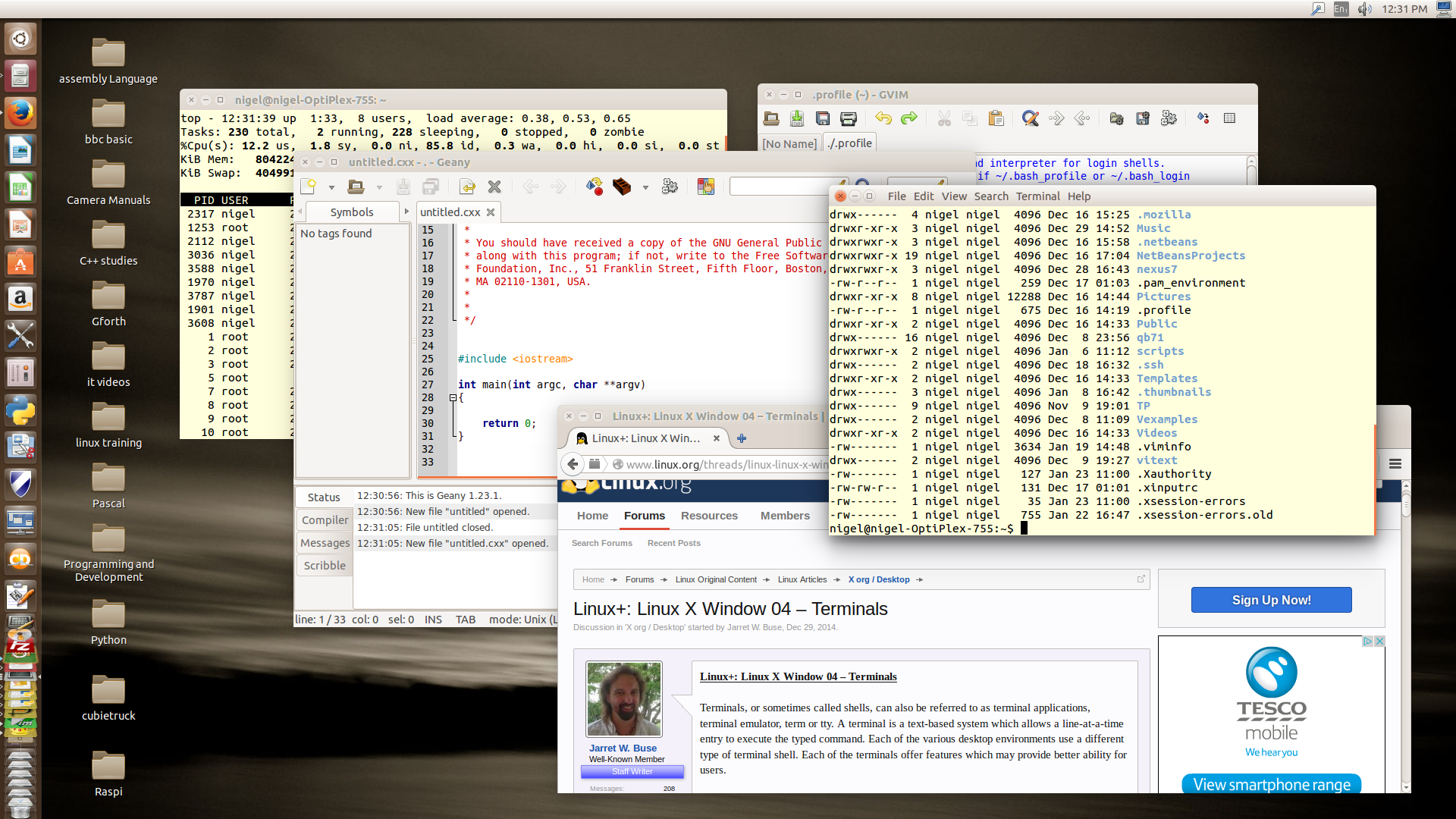
Screenshot from 2015-01-23 12:31:41

So why use Linux and not Windows ?

Is one question that maybe asked during the initial stages of this project,

Well I thought in today’s post I would do my best to answer why not Windows?

The real question I guess is, why is only Linux available for single board or development board computers ? – also remember that all versions of Android use the Linux Kernel, so Android is only a version of Linux.

For myself the answer belongs in the area of the basic philosophy behind Microsoft windows and the development group that looks after the Linux platforms.

Linux on one hand has always been an open systems, operating system. As such it has invited flexibility during its history and development.

Linux took its start from a time before Microsoft, from the UNIX-OS world and as such in a culture that viewed operating systems as relating very closely to computer hardware itself.

Microsoft even today stand out almost uniquely as an operating systems developer who detached their operating systems from hardware distribution and as such charge a premium cost for their Windows platform.

Hows that ?

Its hard to remember a time when IBM first owned and developed PC-DOS, which came as a disk included with their PC’s. This was a time when it was taken for granted that when you purchased a computer it came with an operating system embedded or provided on a disk. Larger business computers came with a support contract that provided support for both hardware and related operating system along with free version upgrades.

After all what use was just a computer without an OS that allowed it to function ?

Screenshot from 2015-01-23 12:34:34

Returning to the reasons behind why Microsoft has mainly lost the market of small devices such as Tablets, Phones and Single board computers?

I feel the reason for this is mainly due to the fact that Microsoft windows at some point lost its connection to (Although it never truly had much!) computer hardware development!

A good example here between Linux and Windows is the fact that during the development of Windows, I think from about Windows 2000 onwards Microsoft removed its windows OS connection to MS_DOS. This left it with an ability to only ever have the full GUI environment present !

This very simple fact left Microsoft with a problem and its one of performance scalability !

When you compare Windows to Linux it will not take you long to come across the ability for Linux to still be installed as a console (Text based !) operating system, in fact regardless of which Linux desktop environment you install the entire system is based on and sits on top of this console text based layer.

The more you study and use Linux you will also come across another interesting fact and its that you can install many different desktop environments, from very basic systems like the original and first mouse based GUI “X-windows” to environments such and GNOME and UNITY which come installed in versions of Linux such as (Fedora, Ubuntu, Red-hat or Suse-linux).

ARMcpu Assembly programming using an SSH remote connection

ARMcpu Assembly programming using an SSH remote connection

when you first become aware of all these Linux desktop environments along with the fact you get these environment options installable and upgradable for free, you may rightly feel a little cheated that you have upgraded your version of windows through many versions at a premium cost, simply to get a more up-to date look to menus and Icons etc….

So the simple fact is that Linux is a more scalable operating system , one that can be installed as a text based environment (Such as for a server system!), so that all the systems resources can be placed into processing internet/cloud or database services. Beyond this if you need a GUI desktop environment you have a world of choices to make from ones that take few systems resources such as X-WINDOWS to power hungry systems such as (UNITY, GNOME or KDE). You can select a GUI to match your systems resources

For example on the Raspberry pi I have selected a GUI called LXDE and on the Cubietruck I have install a desktop environment called XCFE, both these are about middle of the resources scale and leave plenty of system memory for applications and their development……

Posted in Operating system installation | Tagged , , , , , , , , , , , , | Leave a comment